


Managing Your Team Page
Welcome, Coach! Here's a quick guide to everything you can manage from My Team Page (find it under your account menu once you're logged in).
Header Photo
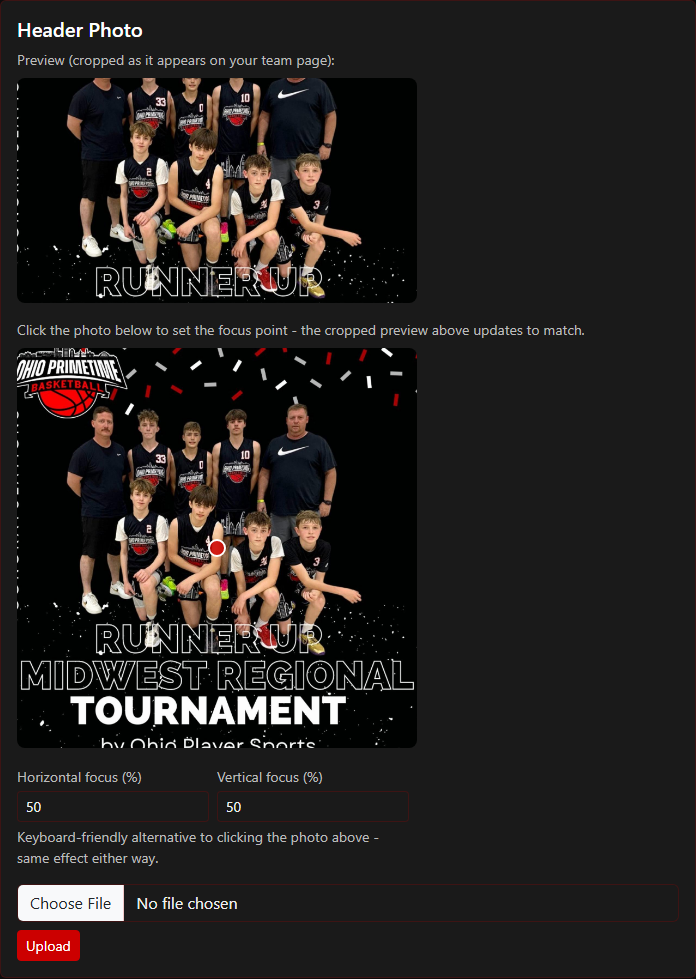
Upload a photo to display at the top of your team's public page. After uploading, click anywhere on the photo (or use the horizontal/vertical number fields) to set the focus point - this controls what part of the image stays visible when it's cropped to fit different screen sizes.
Gallery Photos
Add as many photos as you'd like to your team's gallery - team photos, action shots, tournament memories. You can upload several at once, and remove any photo individually whenever you want.
Team Content
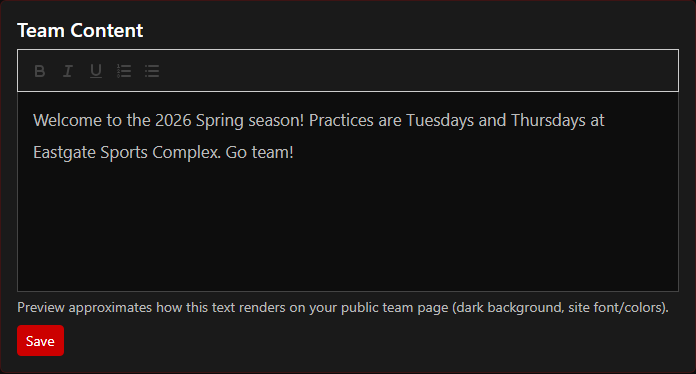
Write a short description or update for your team's public page using the text editor. Formatting is limited to bold, italic, underline, and bulleted/numbered lists - headings, links, and images aren't supported here (use the Gallery for photos). The preview shows roughly how it will look on the live site.
Additional Team Contacts
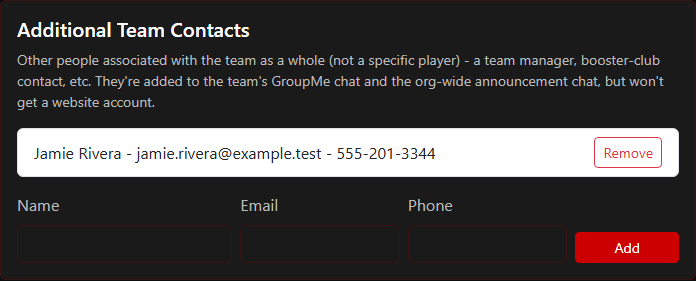
Add people connected to the team who aren't a specific player's parent - a team manager, booster club contact, and so on. Provide their name, email, and phone number. They'll automatically be added to the team's GroupMe chat, but they won't get a website login - this is for people who just need to be reachable, not to manage anything here.
Practice & Game Schedule
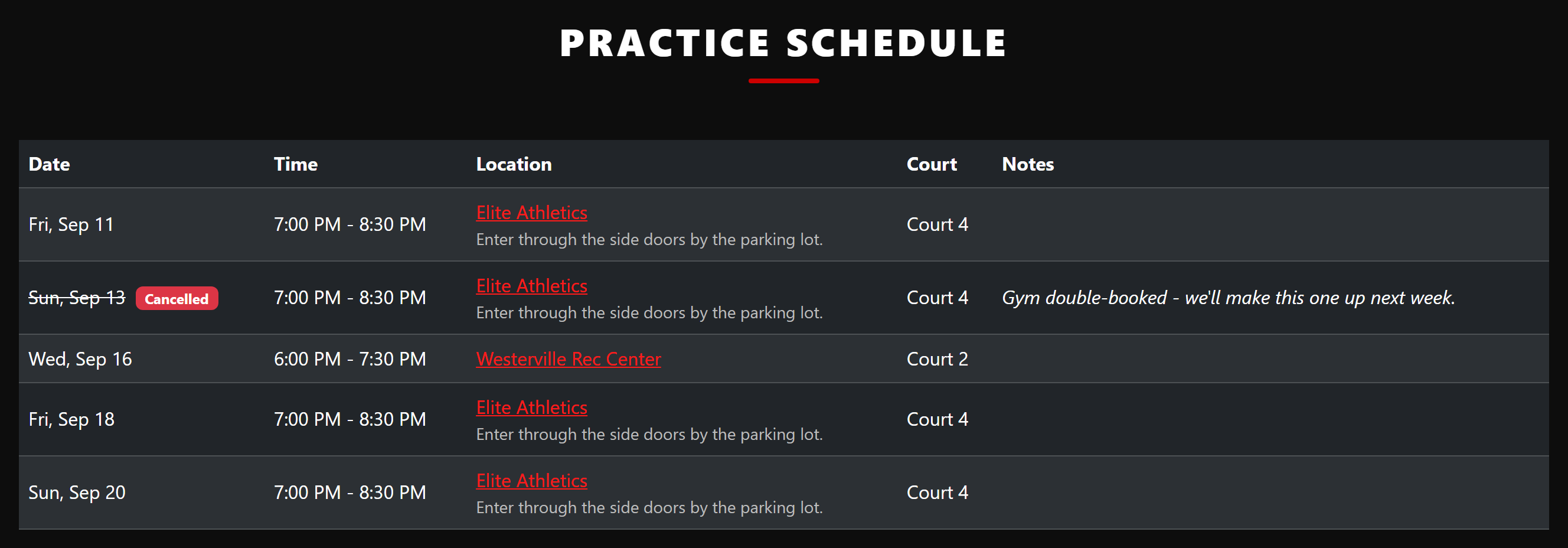
Your team's practices and games appear on the team's page - the date, time, gym, and court for each, with directions where we have the gym's address, plus the opponent and event for a game. It's set up on the admin side, not from My Team Page, so send schedule changes (a new weekly practice time, a one-off gym change, a game, a cancellation) to your team admin and they'll post them.
Practice times and locations are only visible to your team - parents of players on the roster, and coaches, once they're signed in. Someone who isn't on the team sees the team's page without the practice section at all. Games are public, like the tournament schedule.
A cancelled practice or game stays on the schedule crossed out with its reason rather than disappearing, so nobody shows up to an empty gym wondering whether they misread it.
Who's Coming
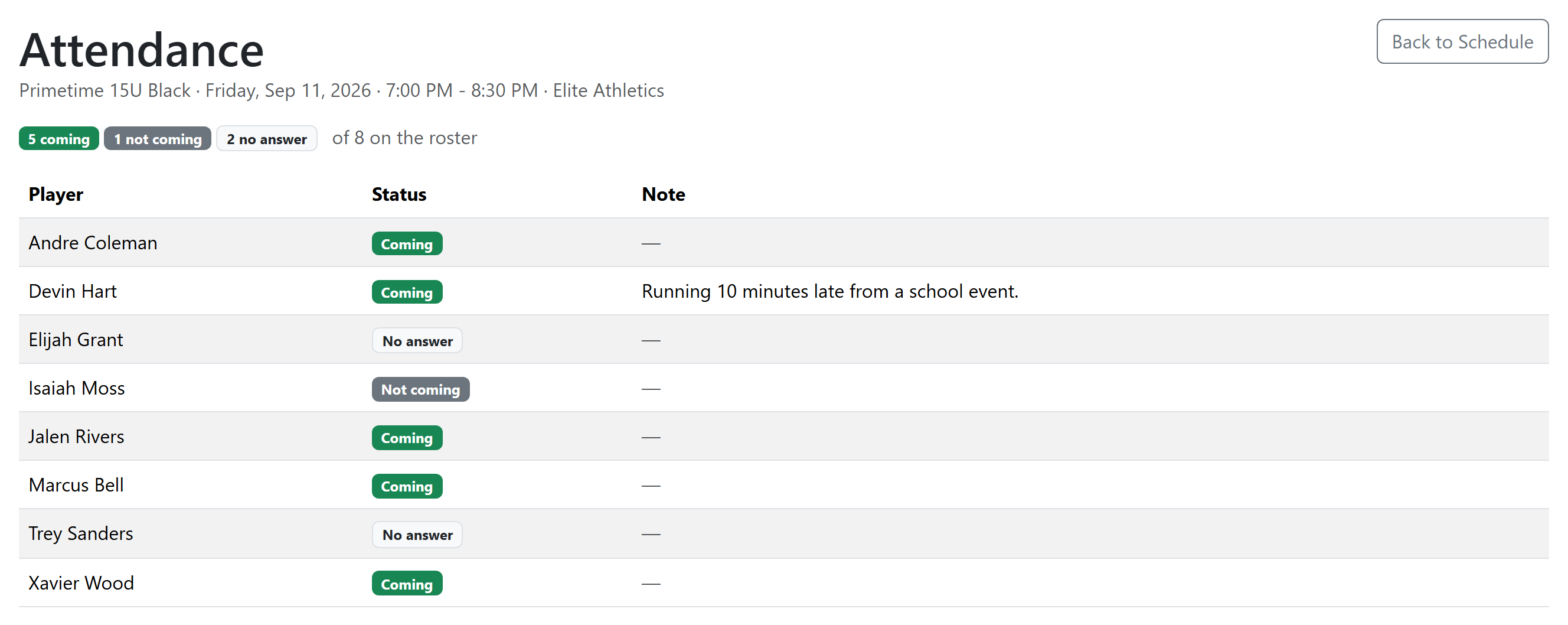
Parents answer for their own player from their dashboard - Coming or Can't make it on each practice and game, plus standing "we're away this week" blocks that cover every practice and game in that window automatically. A parent can still say they're coming to one date inside a block they've set.
Those answers are collected per practice or game with a headcount. If you have an admin login you'll find them under the team's schedule; if not, ask your team admin for the count beforehand. Encourage your parents to answer - an unanswered date is counted as unknown, never as coming.
Uniform Stock
Parents list the jerseys and shorts their player has - color, size, number, and whether the name is on it - from their dashboard. View Uniform Stock on My Team Page shows all of it for your team as a grid: one column per uniform the team has, one row per player, and a blank cell is a player without that piece.
Use the filters to check something specific ("white jerseys", "size YM"), then tick Only players missing a match to get the list of who still needs one. An item marked Loaner belongs to the program. The page is read-only for coaches - parents update their own items, and your team admin can correct anything.
GroupMe Chat
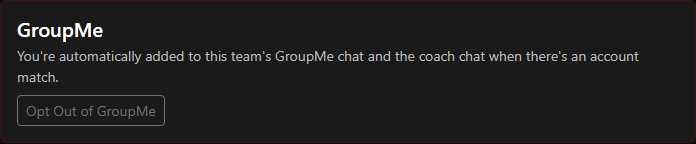
Parents, coaches, and team contacts are added to the team's GroupMe chat automatically as they're added to the team - no manual invites needed. If you'd rather not be included in the automatic GroupMe chat yourself, you can opt out (and back in any time) right from My Team Page.
A Couple of Things to Know
- My Team Page doesn't include roster management or player editing - if you need a roster change, reach out to the team admin.
- You'll only see the team roster if you're also a parent of one of the players - coaches don't have a separate roster view.
Questions about anything here? Contact us and we'll help you out.