


Managing Your Athlete
Welcome! Here's a quick guide to everything you can do from My Dashboard (find it under your account menu once you're logged in).
Accepting a Spot on a Team
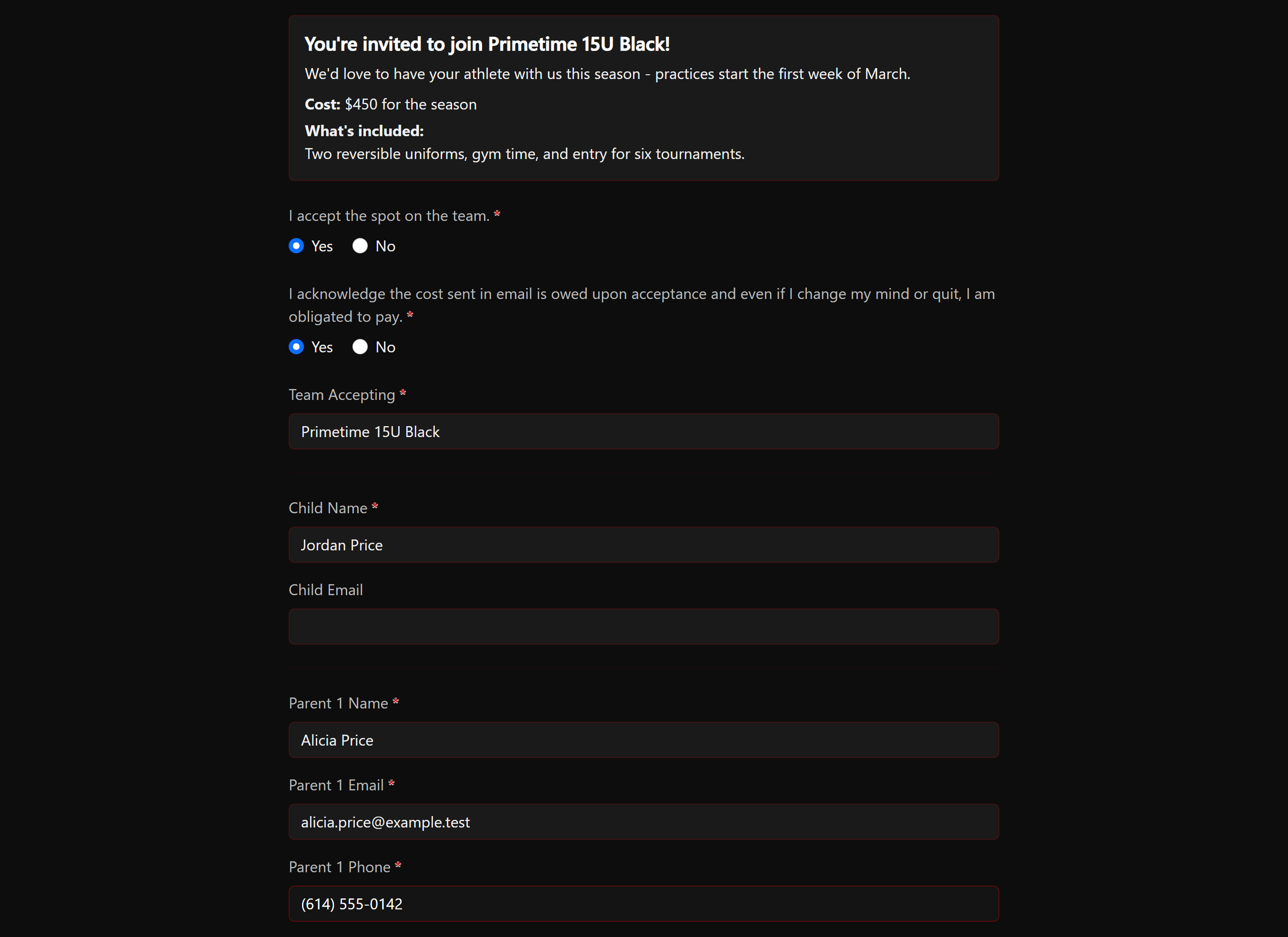
It starts with an invitation email. The link in it walks you through a few short steps: your player's and your own contact info, any team paperwork to read and agree to (some steps just need a checkbox, others ask you to type a name or a short answer), and finally accept or decline. Nothing is saved until you finish the last step, and you can use Back to change an earlier answer.
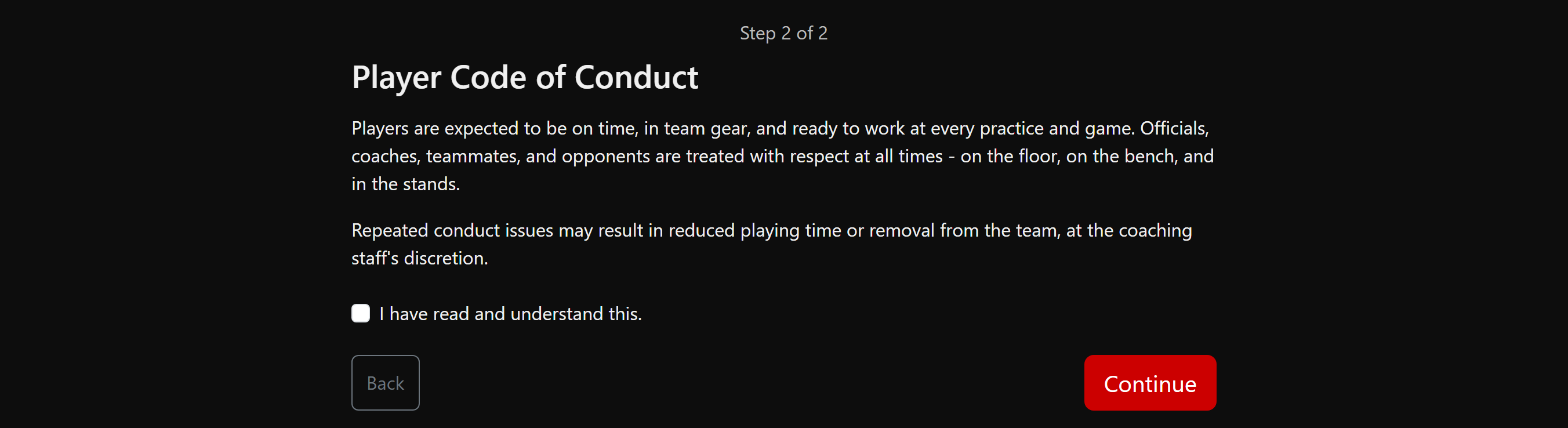
Team paperwork appears as its own step, one item at a time, with Back and Continue at the bottom:
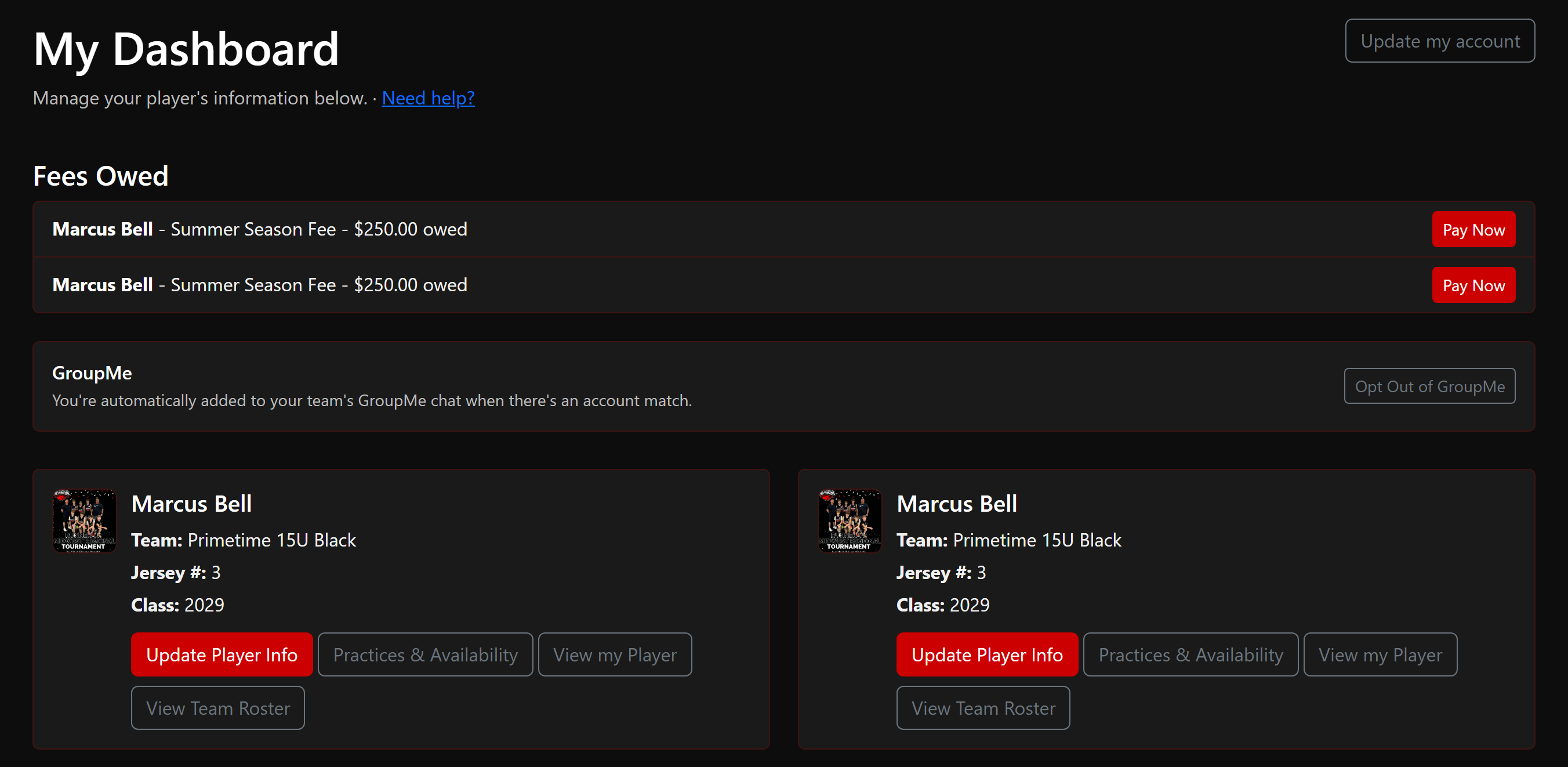
If your team charges a fee when you accept, you'll see it on the confirmation page with the option to pay right then or pay later - your spot is held either way. That balance also shows up on My Dashboard once your account is set up, and we'll email you a reminder with a link back to it.
My Dashboard
Your dashboard lists every player linked to your account, any fees owed, and your GroupMe chat status. From each player's card you can update their info, see the practice and game schedule and set availability, view their Player Card, or view the team roster.
If your athlete has played for more than one team with us, the dashboard shows only their current season's team, so old seasons don't pile up.
Managing Your Athlete's Profile
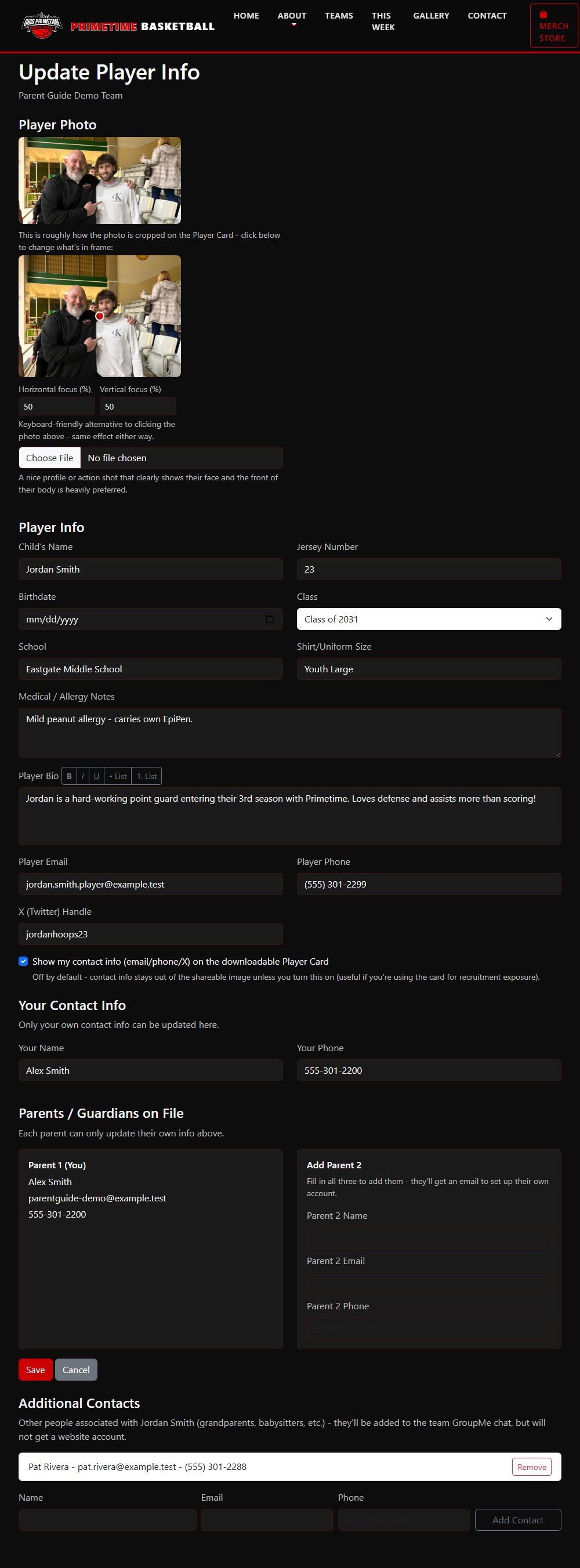
Click Update Player Info to edit your athlete's photo, jersey number, birthdate, class, school, uniform size, medical/allergy notes, bio, and their own contact info. You can also update your own name and phone number here. A photo upload lets you click to set the focus point, so the right part of the photo stays visible when it's cropped.
Schedule and Availability
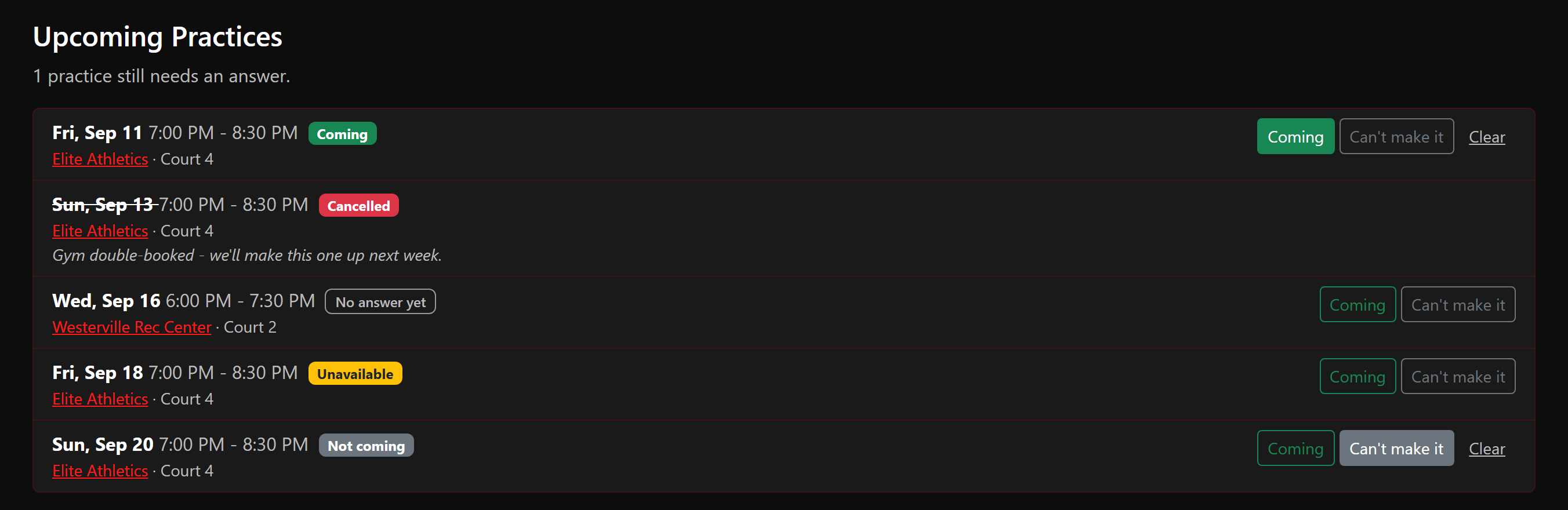
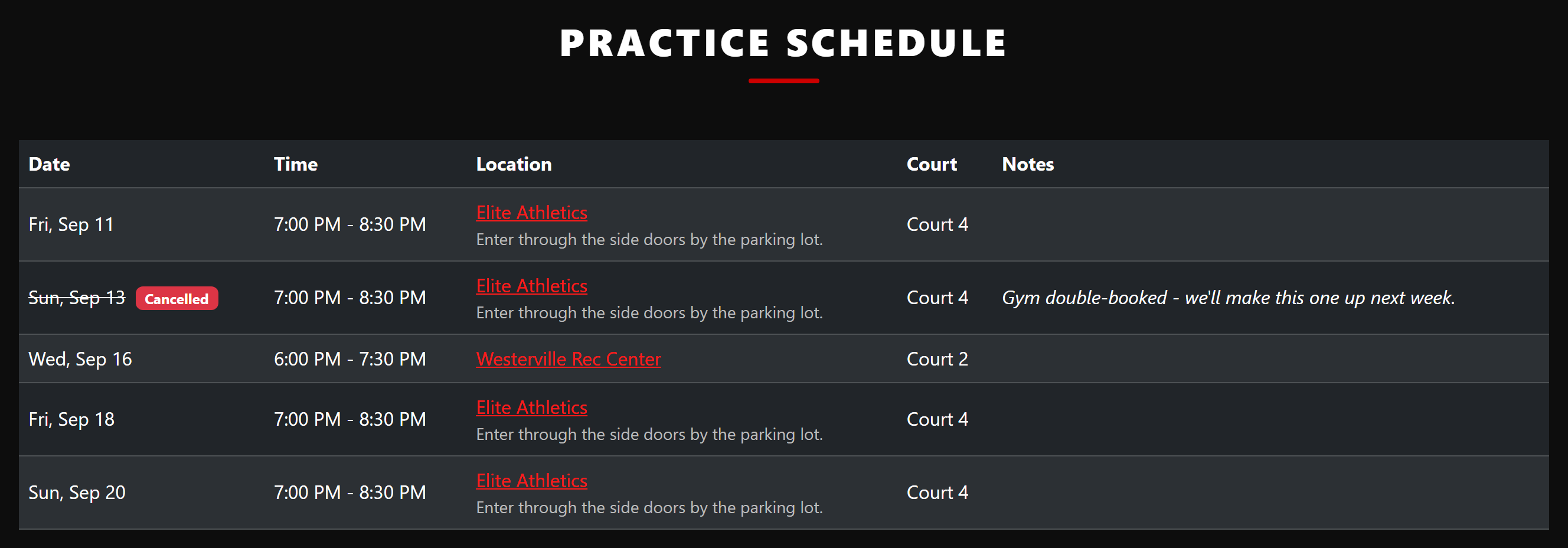
Click Schedule & Availability on a player's card to see everything your coach has scheduled, practices and games together in date order - the date, time, gym, and court for each, plus the opponent and event for a game. Gym names link straight to directions where we have an address on file. A cancelled practice or game stays on the list, crossed out, with the reason, so you know it's off rather than wondering whether you missed it.
For each practice and game you can answer Coming or Can't make it, and change your answer any time (Clear removes it). Your coach sees these answers, so a quick reply genuinely helps with planning.
Times your athlete isn't available
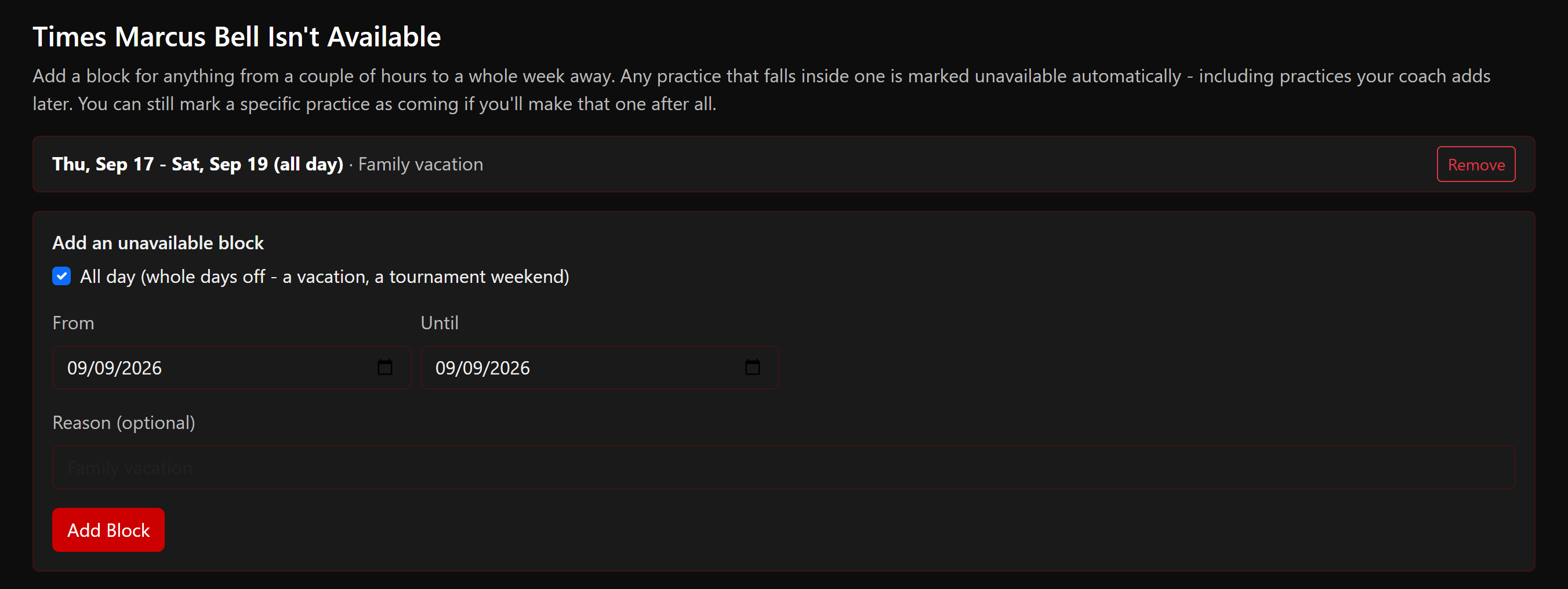
Rather than answering date by date for a vacation or a school trip, add an unavailable block - anything from a couple of hours to a whole week. Every practice and game inside that window is marked unavailable automatically, including ones your coach adds later. Remove the block and those dates go back to needing an answer.
An answer you give on a specific practice or game always wins over a block - so "we're away that week, but he'll make Thursday" works exactly the way you'd say it. Both you and your coach see that pair flagged rather than one silently overriding the other.
Paying a Bill
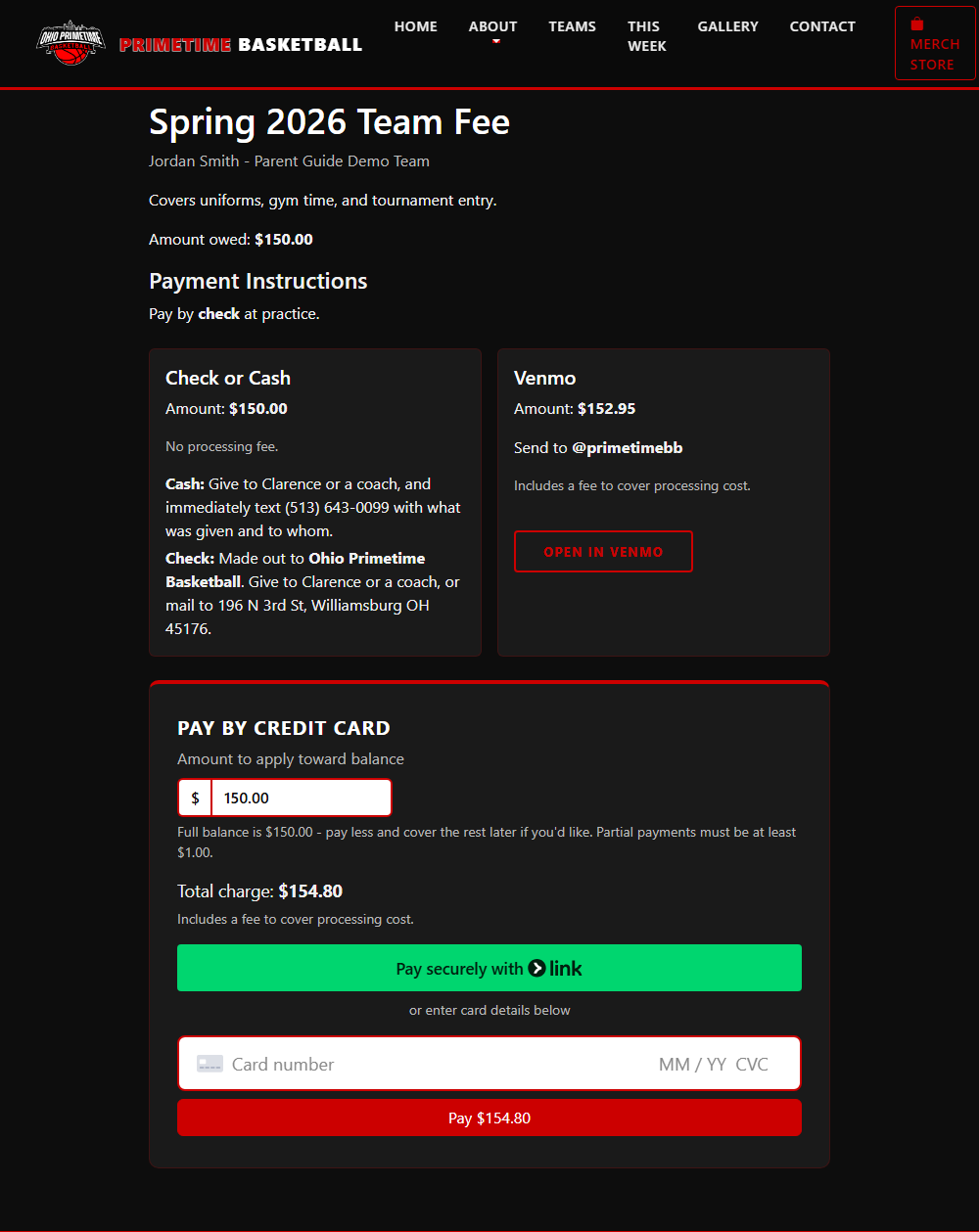
Any fee owed shows up on your dashboard with a Pay Now button. The payment page offers a few ways to pay:
- Check or Cash - informational only, no online action needed.
- Venmo - opens Venmo with the amount pre-filled (a small processing fee applies).
- Credit Card - pay directly on the page (Apple Pay/Google Pay also available where supported; a small card processing fee applies).
For some fees, you can choose to pay part of the balance now rather than the full amount - if that's available for a fee, you'll see an editable amount field on the payment page.
Viewing the Team Roster
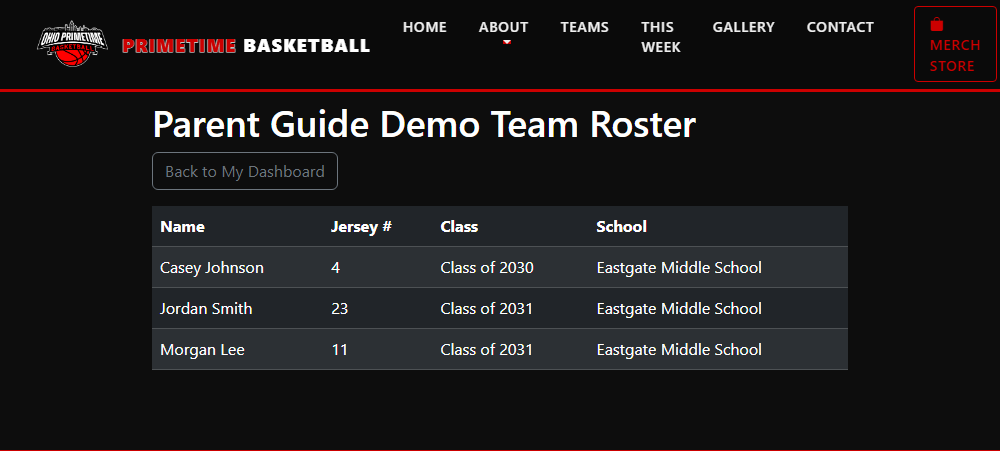
Click View Team Roster from a player's card to see every player on that team, with jersey numbers, class, and school.
Your Team's Page
Every team has a public page with its photo, gallery, and coach's updates. The team's games show there too, along with any tournament schedule we track - anyone can see that part.
The practice schedule on that page is different: it only appears when you're signed in and your athlete is on that team. Practice times and locations are never shown to the public.
Player Card
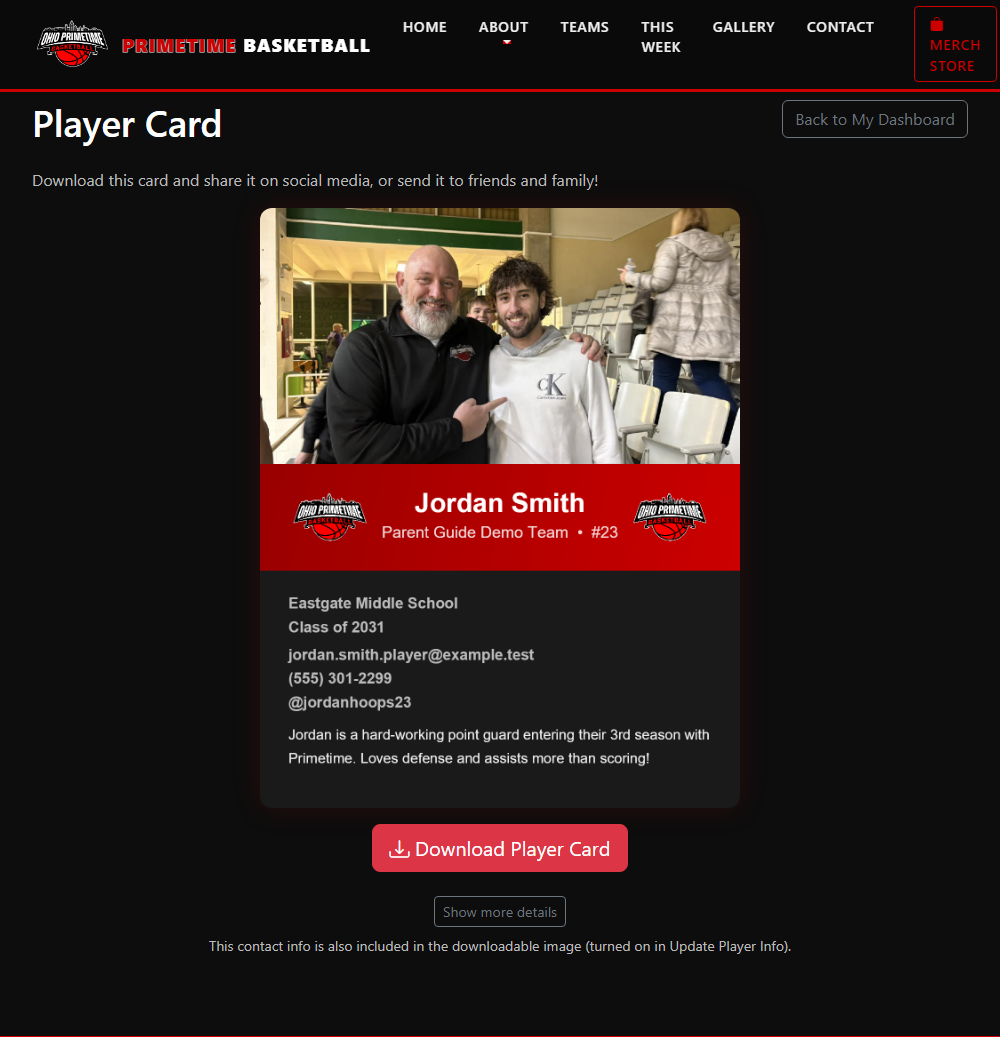
Click View my Player for a shareable, screenshot-friendly summary of your athlete - photo, name, team, jersey number, class, and bio. You can download it as an image or share it directly. If you've chosen to show it, your athlete's own email/phone appear here too - never your own parent contact info, which stays private.
Adding a Second Parent
From Update Player Info, the first parent on file can add a second parent's name, email, and phone. Once added, that person gets their own website account and login.
Additional Contacts
You can also add other people connected to your athlete who aren't a parent - a grandparent, babysitter, and so on. They'll automatically be added to the team's GroupMe chat, but they won't get a website login.
Equipment
At the bottom of Update Player Info you can list the jerseys and shorts your athlete has - the color, size, number, and whether their name is on it. This helps the program know what's out there when it's time to reorder or reassign numbers. You can add, edit, or remove items any time.
An item marked Loaner belongs to the program. Only your team admin can mark or unmark a loaner, and you won't be able to change or remove one yourself - contact your team admin when it's been returned.
GroupMe Chat
Parents and additional contacts are added to the team's GroupMe chat automatically - no manual invites needed. If you'd rather not be included yourself, you can opt out (and back in any time) right from My Dashboard.
Questions about anything here? Contact us and we'll help you out.